Tuesday, 28 June 2011

Virus in Windows System Registry

It's hard to remove the virus in the Windows System Registry, because it's not easy to find where the virus hides. Also, it's danger to edit the data inside the registry. If you enter or delete wrong key, data or value, Windows might be unable to run after that. Here we just show you how to check any unwanted program loaded into the memory when Windows start.

To change the registry data needs to run Microsoft Registry Editor - RegEdit.exe. You can click the Start Button, then select Run... item. When the Run Window will appear, then type 'RegEdit' into Open: textbox and click OK button.

You might be unable to RegEdit, because the virus blocks the doorway. In this case, you need to bring up your Windows in Safe Mode to run the RegEdit. Sometimes, you need to login the Administrator account. Therefore, make sure you know your Administrator account's password when you own the new computer.
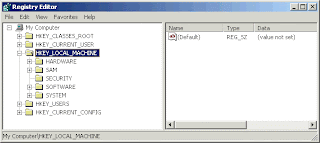
Microsoft System Configuration Utility MSConfig.exe keeps entries of Start-Up programs. Besides that, System Registry has Run, RunOnce and RunOnceEx entry nodes to manage which program can run while Windows is starting.

First, you should check any starting programs inside the HEKY_LOCAL_MACHINE.

Go down to the node in HEKY_LOCAL_MACHINE\SOFTWARE\Microsoft\Windows\CurrentVersion, then look for program entry inside the Run, RunOnce and RunOnceEX. If you find something you don't know, then you type the program name .exe name into the following Search box to find out what's that. If the .exe name is the virus or spyware, then you can delete it.
It's same that you need to check any starting program inside the HEKY_CURRENT_USER.
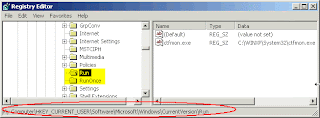

Go down to the node in HEKY_CURRENT_USER\SOFTWARE\Microsoft\Windows\CurrentVersion, then look for unwanted .exe programs inside the Run, RunOnce and RunOnceEX. If you find something, then delete them.

Some virus will restore the entry later or reboot, even you delete the entry from System Registry Editor. Those virus needs special tools to kill them.

Sunday, 10 October 2010

How to Unhide/Recover Files Hidden by Virus from Your USB Drive?

Have you ever ran into the situation where all or some of your files that you stored on your USB flash drive suddenly went missing? There was a possibility that your friends have deleted your files by mistake. But in most of the cases, your files were made hidden by a virus. So your files were still in the USB drive but invisible from you. You tried to use the “Show Hidden Files” option from folder option, but the files just won’t show up. So what can you do to unhide or recover the hidden files from your USB drive? Try USB Show! USB Show is a lightweight Windows application that allows you to recover all hidden files that were hidden by a virus or person, from your USB drive. This handy tool can be used on any removable storage device and also your hard drive.

To use USB Show, run this portable application, click on the “Recover the hide files” button on the main window, then browse for your USB drive. Now, USB Show will scan your USB drive for hidden files and recover them.

After recovery, you are advised to scan the file recovered for any infection with your Anti-virus software. And it is recommended that you make a backup of the files recovered and then format your USB drive.

Download USB Show

Tuesday, 11 May 2010

DISK BOOT FAILURE, INSERT SYSTEM DISK

If you are got message DISK BOOT FAILURE, INSERT SYSTEM DISK after installation and booting operating system for hard disk drive brand Western Digital WDC, please take this action by remove hardisk jumper to CABLE SELECT.
Precaution :
Before adjust HDD jumper please switch off your PC power supply and open the PC cover chassis.

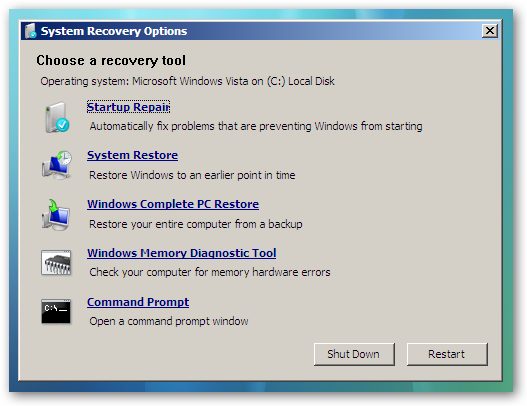
After this step completed then repair your booting problem with CD/DVD OS Installer. Example how to repair boot-up please refer to previous post for Windows Vista/7.

Fixing "BOOTMGR is missing" Error While Trying to Boot Windows Vista/Windows 7

If your Windows Vista computer has encountered the dreaded “BOOTMGR is missing” error, you aren’t alone. If the problem isn’t hardware related you can fix it with relative ease as long as you have a Windows Vista/7 DVD handy.Boot off the Windows Vista DVD and then click Next at the first prompt:You should see a link in the lower left-hand side for “Repair your computer”The installation process will attempt to find your Vista installation directory. If there’s more than one in the list, select the correct one and then use the Next button again.Click the first link for “Startup Repair”

The installation process will repair the system, and then prompt for you to reboot.
Alternatively you could have chosen the Command Prompt option instead, and use the following command to fix the boot options only:

bootrec /fixboot

At this point you should be able to reboot your computer, remove the DVD and everything should be working.

Saturday, 26 December 2009

Backup Data Using Google Gmail Drive

Losing your important fail and data is very frusting. Hope this information can assist and prevent from losing your valuable document and data.


1) Download gmail drive at http://filehippo.com/download_gmail_drive/download/42696dadcc6b6d6d088480681c05c5c3/

2) Unzip and install to ur computer windows.

3) Open my computer and u see Gmail drive


4) Click to Gmail drive and login using your google id.


5) Copy your data to gmail drive.


Best regards.

Tuesday, 31 March 2009

Asterisk Key shows passwords hidden under asterisks

Asterisk Key

Works in Windows 9X, ME, 2000 & XP & Vista

http://www.lostpassword.com/asterisk.htm

Do you remember each password for secure web sites that you visit? Most of us just let the computer remember the password for us, all we see is a row of asterisks when we log on and eventually we no longer remember what the password actually is.

Asterisk Key unlocks the code and translates the ***** into the password you selected for the login. I tried it on a couple of web pages, and it worked great. It did not work on the dial up password in Windows XP however.